Last updated: Mar 2026
Integrations
Directory sync
Directory sync keeps your Clevero workspace aligned with your company directory. You can connect one directory provider and then import users and groups into Clevero.
What directory sync does
After a directory sync is connected, you can import identity data into Clevero, including:
Users (as members / invites)
Groups (mapped into Clevero teams)
Org structure (departments/teams based on what the provider exposes)
Where to set it up
Go to Settings → Integrations and open the Directory tab.
You’ll see three options:
Google Workspace(import users & groups)
Microsoft Entra (import users, groups, memberships)
SCIM (provision from your identity provider)
Clevero supports one active directory provider at a time. If you switch providers, the UI will ask you to confirm.
Screenshot placeholder
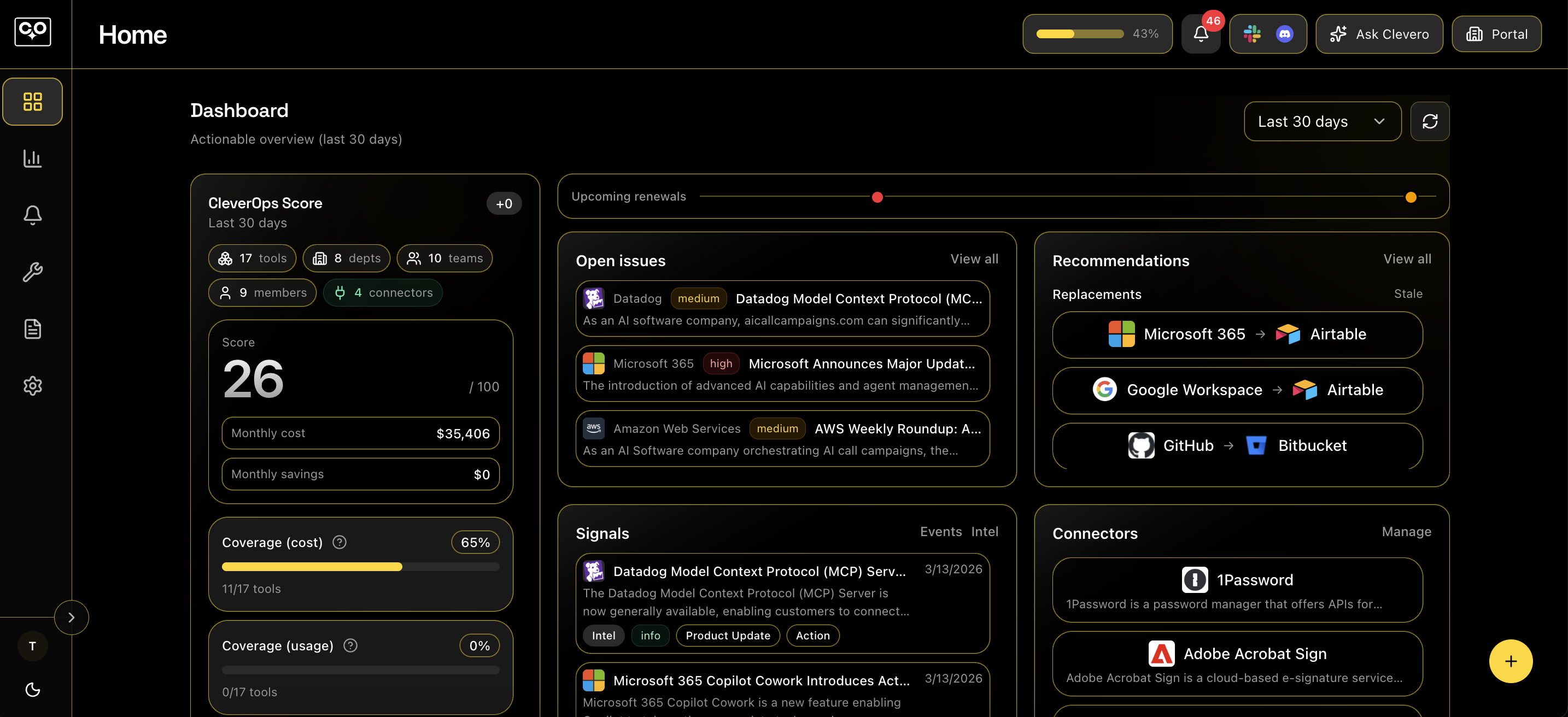
Replace this image with a screenshot of Settings → Integrations → Directoryshowing the provider selector (Google Workspace / Microsoft Entra / SCIM).
Option 1: Google Workspace
Use this when your company directory is Google Workspace.
What you need
Delegated admin email
Service account JSON
Customer ID (optional; defaults to my_customer)
How it works in the app
1) Select Google Workspace
2) Paste the required credentials
3) Click Connect Google
4) Use Preview + Apply import to bring users/groups into Clevero
Option 2: Microsoft Entra
Use this when your company directory is Microsoft Entra (Azure AD).
What you need
Tenant ID
Client ID
Client secret
How it works in the app
1) Select Microsoft Entra
2) Enter Tenant ID, Client ID, Client secret
3) Click Connect Entra
4) Use Preview + Apply import to bring users/groups into Clevero
5) You can also run Sync now and review the sync runs log
Option 3: SCIM
Use this when you want your IdP to push (provision) users/groups into Clevero via SCIM.
How setup works
1) Select SCIM
2) Click Setup SCIM
3) Copy the SCIM base URL + bearer token and paste them into your IdP’s SCIM app
The token is sensitive. In the UI it can be shown/hidden and copied. If the value isn’t available yet, the app will fetch it when you click copy/show.
Screenshot placeholder
Replace this image with a screenshot of the SCIM setup panel showing the SCIM base URL + bearer token (with show/hide).
Preview and apply import
After connecting a directory provider, you can import data into Clevero in two steps:
Preview shows what would be created (for example: how many departments, teams, and invites).
Apply import creates those records in Clevero.
This is the safest way to validate your directory setup before changing your workspace structure.
Sync runs, reset, and troubleshooting
In the Directory tab you can manage the connection:
Sync now triggers a directory sync run (where supported)
Directory sync runs shows recent runs with status and any error details
Reset reconnects / re-initializes the provider (useful if credentials changed)
If you see errors in the runs list, start by confirming the credentials still exist and that required permissions were granted in your provider.