Last updated: Mar 2026
Setup checklist
After the initial onboarding wizard, CleverOps continues to track setup progress for your workspace. This page explains what the in-app progress bar means, where it comes from, and what happens if you leave items incomplete.
Where you see setup progress
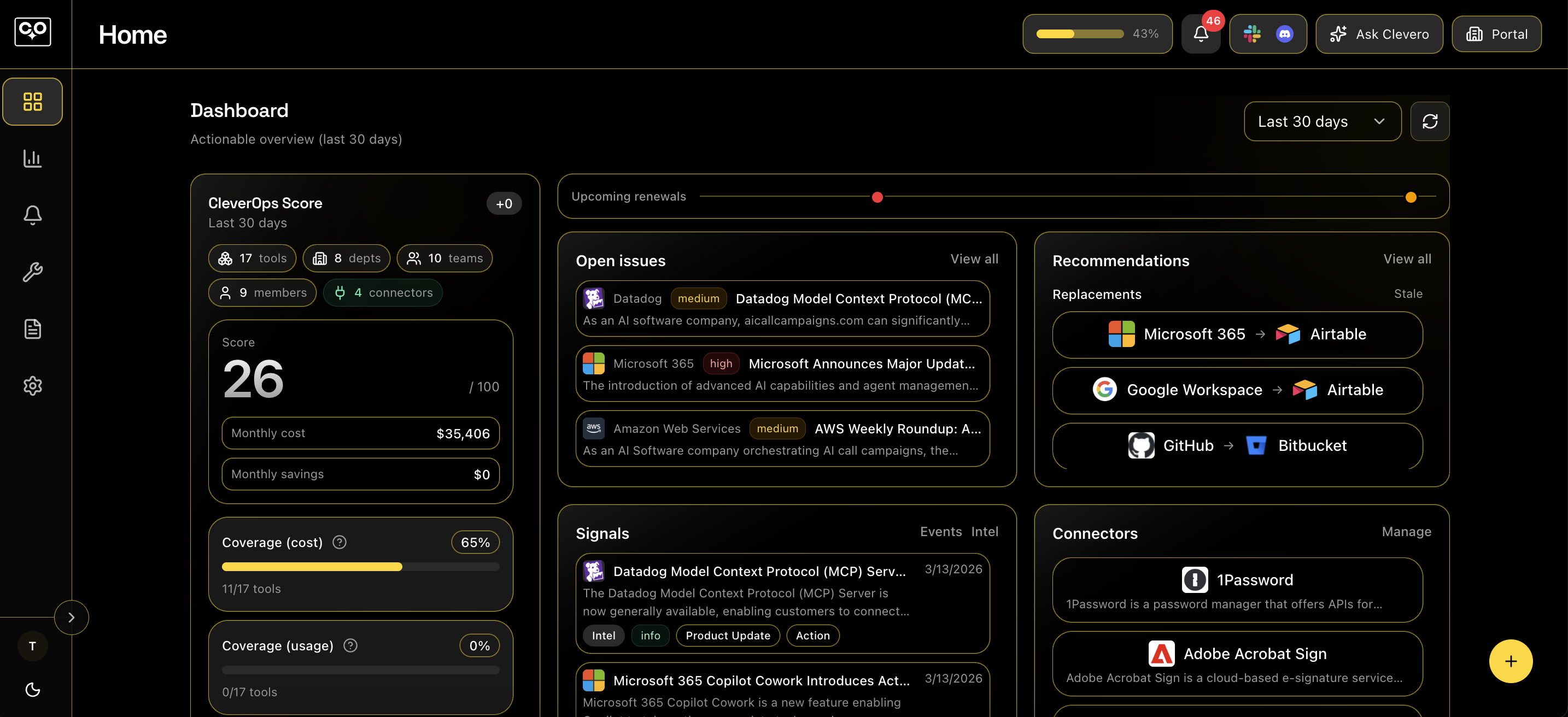
- In the main app header, you may see a small progress bar chip. If your setup is not complete, it’s clickable and takes you to Workspace Setup at
/setup. - On
/setup, you’ll see a circular progress indicator (percentage) and a list of actions to complete.
How the checklist is generated
- The setup page loads a server-generated list of actions and a progress percentage.
- Actions are shown as cards with: title, description, and a Continue button that links you to the right place in the app.
- Each action has an impact level. Low-impact items are grouped under an Optional section.
What "not finished" means (and what it does not mean)
- If you still have actions left, your workspace setup progress stays under 100%, and the header progress chip continues to show.
- You can still use the app normally. "Not finished" means CleverOps is still recommending configuration steps to unlock better coverage and cleaner operations—not that your account is blocked.
- Completing items usually improves what you see elsewhere (for example: more accurate analytics coverage, fewer missing fields in inventory, or fewer integration warnings).